

Matter: the promise realized?
Smart home interoperability was a pipe dream for a decade. We dealt with fragmented platforms and 'coming soon' promises that never materialized. Matter finally changed that by moving past the hype into actual hardware you can buy.
What problem does Matter solve? Simply put, the fragmented smart home ecosystem. For too long, choosing a smart home platform meant locking yourself into a specific brand's ecosystem. A lightbulb from one company might not work seamlessly with a thermostat from another. Matter aims to break down those walls, allowing devices from different manufacturers to communicate with each other, regardless of the underlying technology.
As of late 2022, as reported by Gizmodo (October 4, 2022), Matter is finally here. It’s not a perfect rollout, and adoption is still growing, but the foundation is laid. Looking ahead to 2026, we’re seeing that initial traction turn into real momentum. It’s actually happening, and that’s a big deal for tech enthusiasts who want a truly connected home.

Hardware compatibility and protocols
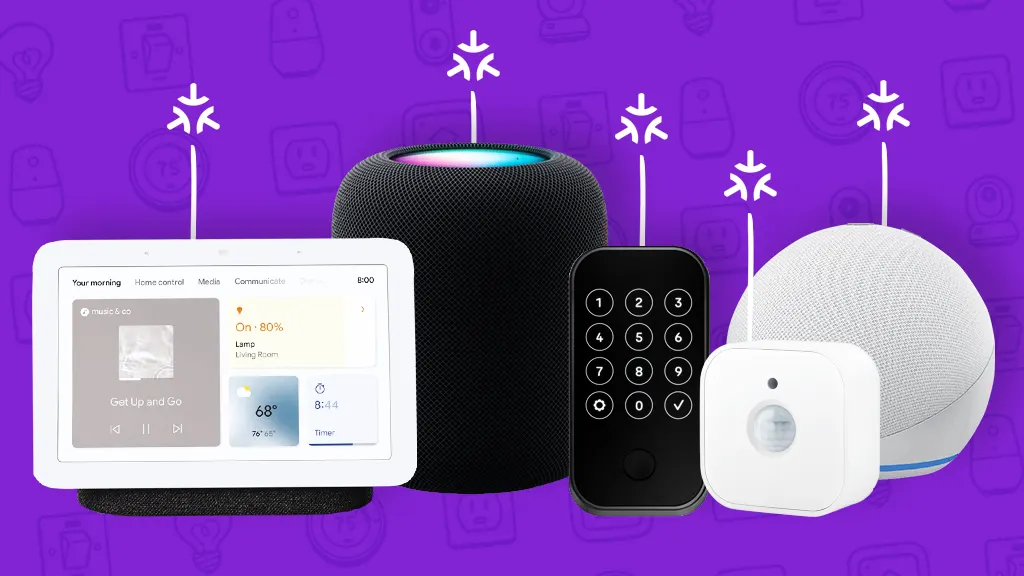
The big players are all on board with Matter. Amazon, Apple, Google, and Samsung have all committed to supporting the standard, and we’re starting to see devices emerge from these companies that are Matter-compatible. It’s not a complete overhaul of their existing product lines yet, but it’s a significant step.
Currently, lights, thermostats, plugs, and door/window sensors are leading the charge in terms of Matter support. Expect to see a broader range of device types – including blinds, garage door openers, and even appliances – become compatible over the next few years. The Connectivity Standards Alliance (CSA) is continuously working to expand the scope of Matter.
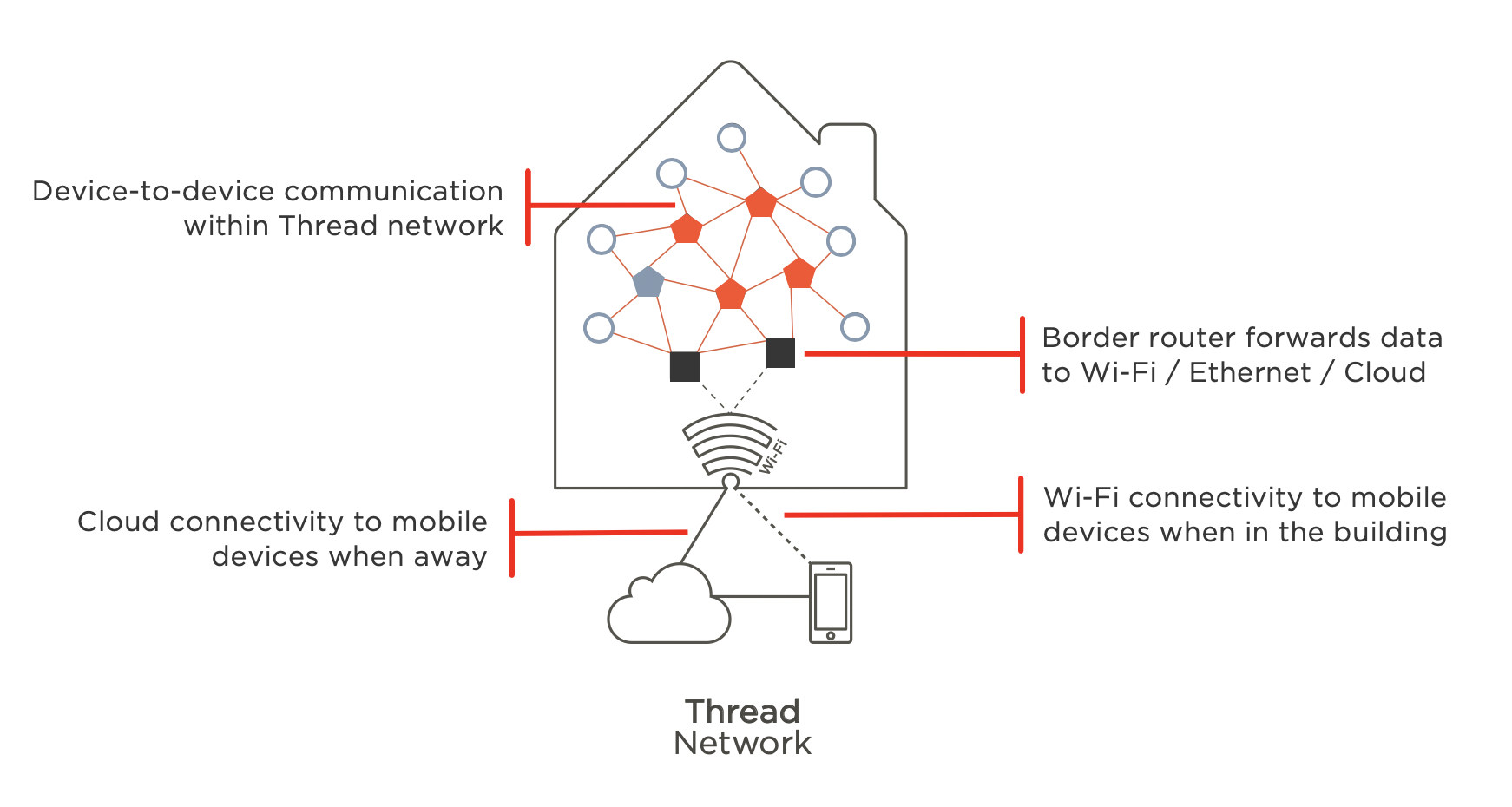
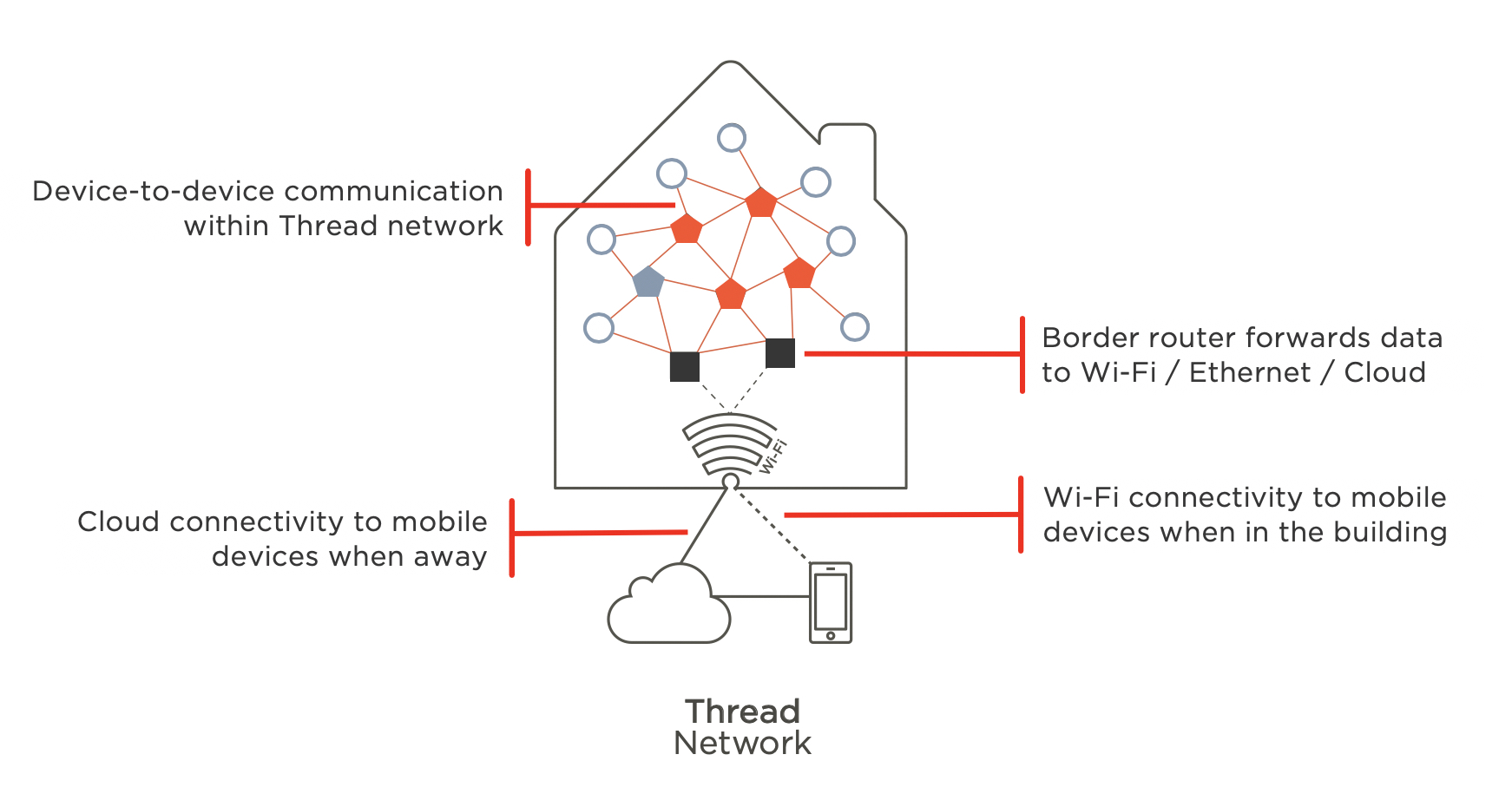
A key aspect of Matter is its support for multiple 'over-the-air' communication protocols: Wi-Fi, Thread, and Ethernet. Wi-Fi is the most common, leveraging existing home networks. Thread is a low-power mesh network ideal for battery-powered devices like sensors. Ethernet provides a wired, reliable connection for devices that need it. Devices typically choose the protocol best suited to their needs, and Matter handles the translation between them.
The hub question
The role of Matter hubs – or controllers – can be confusing. Not every device needs a dedicated hub to function with Matter. However, some ecosystems do. For instance, Apple HomeKit, while now supporting Matter, still often requires an Apple HomePod, Apple TV, or iPad acting as a hub to control Matter devices.
The advantage of a dedicated hub is centralized control and often enhanced security features. These hubs typically handle the complex communication between different devices and protocols. The downside is another point of failure and potential cost. Relying on a 'border router' built into other devices – like certain smart speakers or Wi-Fi routers – eliminates the need for a separate hub, but may offer less control.
Your hub is the gatekeeper. If it isn't secure, your whole network is open. I check for hubs that support automatic firmware updates and local-only control to keep data off third-party servers.
Integrating Matter with Existing Systems
This is where things get a little complicated. How does Matter fit into existing smart home platforms like Home Assistant and OpenHAB? These open-source systems offer incredible flexibility, but integrating Matter devices requires some extra effort. Initial support involved community-developed integrations, and the process isn’t always seamless.
The challenge lies in bridging the gap between Matter and the protocols these systems traditionally support. Matter isn’t designed to replace Zigbee or Z-Wave entirely – at least, not yet. Instead, it aims to coexist with them. Some Matter devices can act as bridges, translating Matter commands to Zigbee or Z-Wave, allowing you to control older devices alongside newer Matter-compatible ones.
Currently, the integration relies heavily on community contributions and evolving software. You might need to configure custom YAML files in Home Assistant or install specific plugins in OpenHAB. Expect a learning curve and potential compatibility issues. It's a trade-off: greater control and customization versus the simplicity of a more closed ecosystem. The situation is improving rapidly, though, as the Matter standard matures and developers create more robust integrations.
There are packages and SDKs available for developers to create integrations, but the specifics can change quickly. Keep an eye on the Home Assistant and OpenHAB forums for the latest updates and workarounds. Expect to spend some time troubleshooting and experimenting.
Security in a connected home
Matter was designed with security as a primary concern, and it represents a significant improvement over some older smart home protocols. It utilizes encryption to protect communication between devices and authentication mechanisms to verify their identities. However, no system is perfect.
Potential vulnerabilities still exist. A compromised device could be used as a gateway to access your network, or a poorly secured hub could expose your entire smart home. The security of your Matter network ultimately depends on the weakest link – whether it’s a vulnerable device, a weak password, or an outdated firmware.
Protecting your Matter network requires a multi-layered approach. Use strong, unique passwords for all your devices and accounts. Enable two-factor authentication whenever possible. Keep your devices updated with the latest firmware to patch security vulnerabilities. And be mindful of the permissions you grant to third-party apps and services.
Troubleshooting Common Matter Issues
Even with a well-designed standard like Matter, things can go wrong. Devices might fail to connect, experience intermittent connectivity, or simply not work as expected. Here are a few common problems and troubleshooting tips.
If a device won’t connect, first check its power supply and network connection. Ensure it’s within range of your Matter hub or border router. Try resetting the device to its factory settings and re-adding it to your network. Sometimes, a simple reboot of your hub or router can resolve the issue.
Intermittent drops usually stem from Wi-Fi congestion or poor Thread mesh coverage. If a Thread sensor keeps falling off, you likely need another mains-powered 'router' device (like a smart plug) to bridge the gap. Check the r/Matter subreddit for specific device quirks.
- Verify the device has power and the status LED is active.
- Reset the device to factory settings.
- Reboot your hub or router.

No comments yet. Be the first to share your thoughts!