

Thread: the next generation of smart home
For years, the smart home world has been a bit of a patchwork. Wi-Fi struggles with congestion as more devices connect, and Zigbee, while reliable, often requires a dedicated hub. Thread is changing that. It’s a new networking protocol designed specifically for the demands of a connected home, and it’s gaining serious momentum. The benefits are significant: low power consumption, a self-healing mesh network, and importantly, interoperability.
Unlike Wi-Fi, which can drain batteries quickly, Thread is designed to let devices run for years on a single battery. The mesh network means each device strengthens the signal for others, extending range and eliminating dead spots. But the biggest advantage, in my opinion, is its connection to Matter. Matter is the new standard aiming to make all smart home devices work together, and Thread is one of the core protocols it relies on.
Simply having a smart home isn't enough anymore. We need reliability. Thread builds a foundation for home automation that actually works. By 2026, most Matter devices will rely on it, so it makes sense to understand the tech before buying new gear.
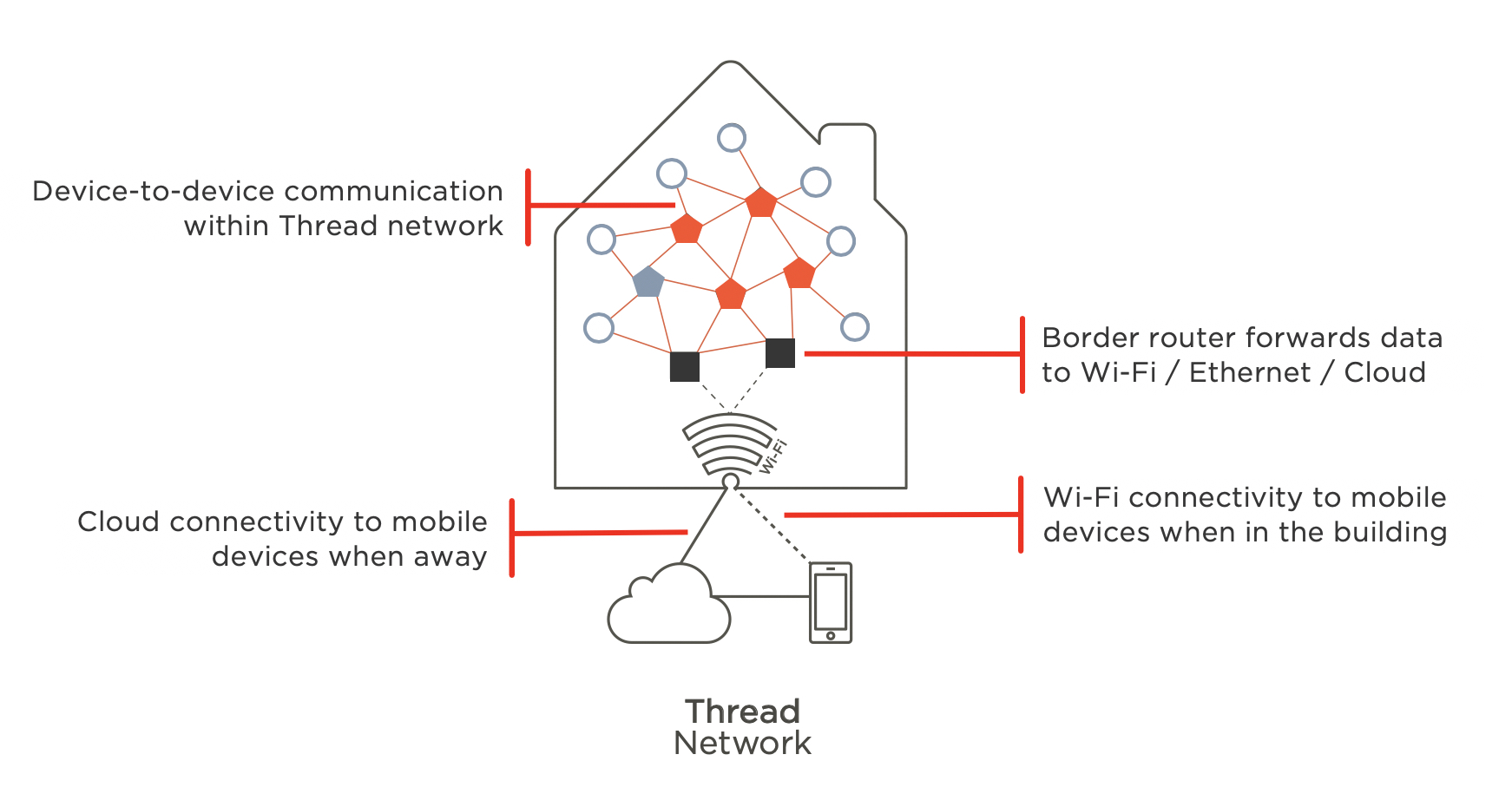
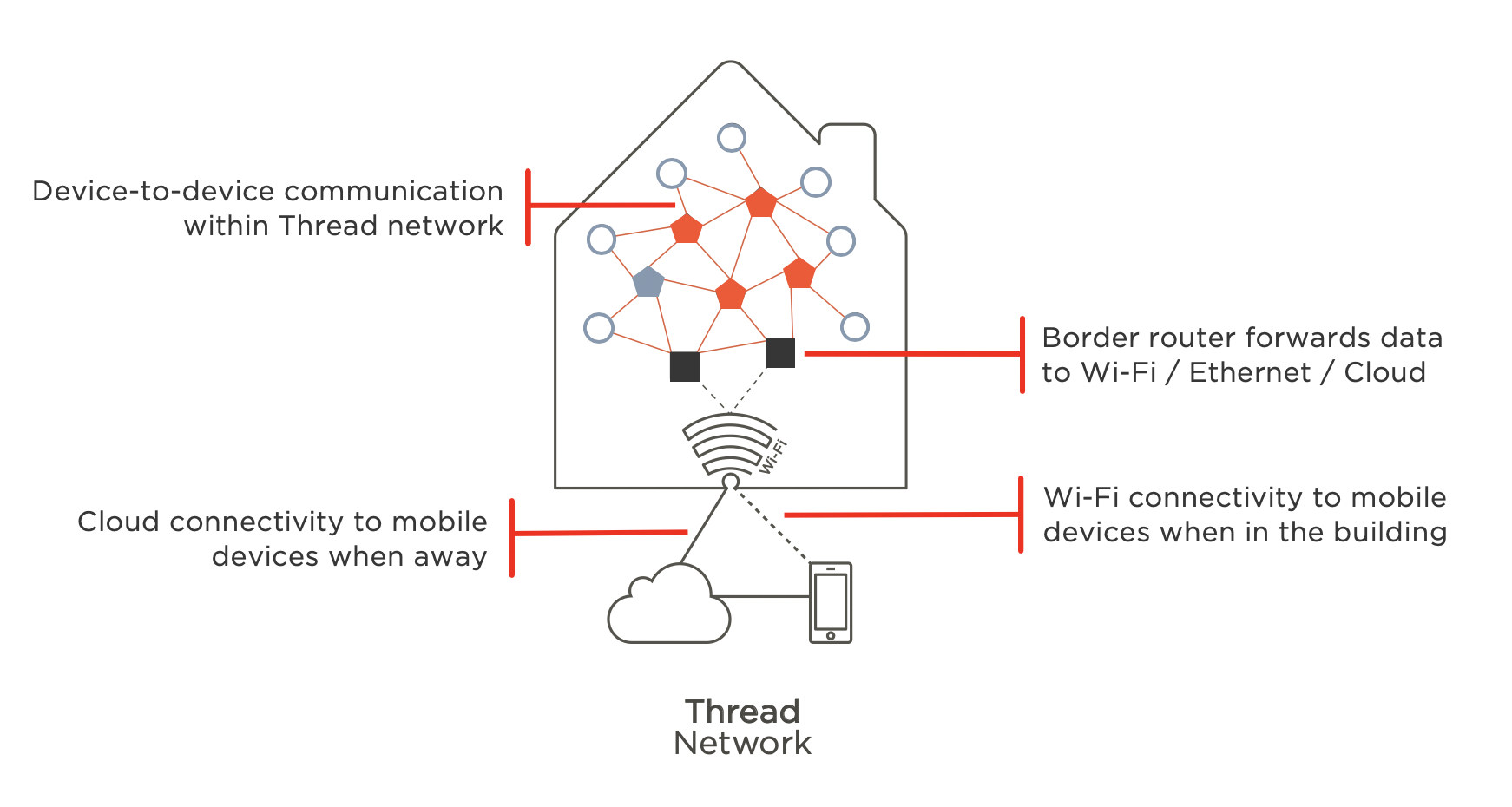
Border routers connect your home to the internet
Think of your Thread network as a private street and the internet as the highway. A border router is the on-ramp. It lets your devices talk to your phone and the cloud. Without one, your Thread network is an island.
There are two main ways to get a Thread border router. You can purchase a dedicated device, specifically designed for this purpose. Or, increasingly, you’ll find border router functionality built into existing smart home hubs. This is where things can get a little confusing, and it’s important to understand the difference.
A dedicated border router offers simplicity and control – it does one thing, and it does it well. A device with a built-in border router adds functionality to an existing hub, but it can also introduce potential complications, which we’ll explore later. The key takeaway is that every Thread network needs one, and choosing the right one is essential for a smooth experience.
The problem with multiple border routers
Running multiple active border routers on one network often causes instability. Devices get confused and switch between networks constantly, leading to lag or dropped connections. It is better to have one clear path to the internet.
The problem stems from how Thread is designed to function. It prioritizes the most direct path between devices, but multiple border routers confuse this process. Devices may struggle to maintain a stable connection, leading to intermittent functionality or complete failure. It’s not just a technical issue; it impacts the user experience directly.
Essentially, you want one designated border router acting as the single point of contact between your Thread network and the internet. Anything more is unnecessary and counterproductive. It might seem like redundancy is a good thing, but in the case of Thread, it’s a source of frustration. If you have multiple devices with border router capabilities, you’ll need to disable all but one.
Popular Smart Home Hubs and Thread Border Router Support (2026)
| Device Name | Manufacturer | Thread Border Router | Notes |
|---|---|---|---|
| Apple HomePod mini | Apple | Yes | Functions as a Thread border router without requiring additional setup. |
| Apple TV 4K (2nd generation or later) | Apple | Yes | Acts as a Thread border router, enhancing network connectivity. |
| Google Nest Hub (2nd generation) | Yes | Serves as a Thread border router, expanding the range of compatible devices. | |
| Google Nest Wifi Pro | Yes | Includes a Thread border router for improved smart home network performance. | |
| Samsung SmartThings Hub v3 | Samsung | No | Does not natively include a Thread border router. Requires a compatible device to act as one. |
| Hubitat Elevation | Hubitat | No | Does not natively support Thread. Requires a third-party Thread border router. |
| Amazon Echo (4th Gen) | Amazon | No | Does not function as a Thread border router. |
| Aeotec Smart Home Hub | Aeotec | Yes | Designed with integrated Thread border router functionality. |
Illustrative comparison based on the article research brief. Verify current pricing, limits, and product details in the official docs before relying on it.
How to choose a border router
Selecting the right Thread border router requires careful consideration. It's not simply about picking the cheapest option. Compatibility is paramount: ensure the border router is compatible with the smart home platform you’re using (HomeKit, Home Assistant, Google Home, etc.). The Home Assistant community forums are a great resource for checking compatibility reports from other users.
Range is another important factor, especially if you have a large home. Consider the physical layout of your house and choose a border router with sufficient coverage. Reliability is crucial. Look for devices with a proven track record and positive user reviews. A stable connection is far more valuable than flashy features.
Finally, think about future-proofing. Choose a border router that will continue to receive software updates and support new devices as the Thread ecosystem evolves. Don't just focus on today's needs; consider what your smart home might look like in a year or two. Here's a quick checklist to guide your decision:
- Check if it works with HomeKit, Home Assistant, or Google Home.
- Range: Is the coverage area sufficient for your home?
- Reliability: What do user reviews say about its stability?
- Future-proofing: Will it receive ongoing software updates?
Setup and configuration
Setup varies by platform, but Home Assistant is a good baseline because of its granular control. First, plug in the border router and power it up. In Home Assistant, go to the Matter integration.
Home Assistant should automatically detect the border router. If not, you may need to manually add it using its unique commissioning code (often found on the device itself or in the accompanying documentation). Follow the on-screen prompts to complete the pairing process. Once paired, the border router will begin broadcasting a Thread network.
Next, put your Thread devices into pairing mode. This usually involves pressing and holding a button on the device itself. Home Assistant will then scan for nearby Thread devices and add them to your network. The entire process typically takes just a few minutes. Apple HomeKit and Google Home have similar, though slightly different, setup procedures. Refer to the platform’s official documentation for detailed instructions.
It’s worth noting that some devices may require a firmware update before they can connect to a Thread network. Check the manufacturer’s website for the latest firmware version and installation instructions. A stable internet connection is also essential during the setup process.
Troubleshooting common issues
Even with careful setup, you may encounter occasional issues with your Thread network. One common problem is devices failing to connect. First, ensure the device is within range of the border router. Try moving it closer to see if that resolves the issue. Also, verify that the device is in pairing mode and that its firmware is up to date.
Network instability can manifest as intermittent connectivity or slow response times. If this happens, try restarting your border router and any affected devices. Check for interference from other wireless devices, such as Wi-Fi routers or Bluetooth speakers. The Home Assistant community forums often have threads dedicated to troubleshooting specific Thread issues.
Matter compatibility can sometimes be tricky. Ensure that both your border router and the device you’re trying to connect support the Matter standard and are running the latest firmware. If you're still having trouble, consult the Matter FAQ on the Matter website or seek assistance from the device manufacturer. Resources like the Home Assistant community are invaluable for finding solutions to common problems.
- If a device won't connect, check the range and update the firmware.
- Network instability: Restart devices and border router; check for interference.
- Matter compatibility: Ensure both devices support Matter and have the latest firmware.


No comments yet. Be the first to share your thoughts!