
The reality of matter 1.3
Smart home tech has been a mess of incompatible apps for years. Matter 1.3 is the 2026 update meant to fix this by letting different brands actually talk to each other without a middleman.
The history of smart home technology is riddled with fragmentation. Early efforts from companies like Wink and SmartThings showed potential, but ultimately failed to achieve widespread adoption. Then came the walled gardens of Apple HomeKit, Google Home, and Amazon Alexa, each with its own strengths and weaknesses but none able to seamlessly integrate with everything else. Matter is the industry’s latest, and perhaps most serious, attempt to break down these walls.
The Connectivity Standards Alliance (CSA), a consortium of tech giants including Apple, Google, Amazon, and Samsung, is at the heart of Matter. Their goal is ambitious: to create a single, open standard that allows devices from different manufacturers to work together effortlessly. This isn’t about replacing your existing smart home setup; it’s about making it more flexible and future-proof. A user should be able to add a lightbulb from one brand, a thermostat from another, and a security sensor from a third, all without worrying about compatibility.
Why should you care now in 2026? Because the initial rollout of Matter, while promising, had limitations. Matter 1.3 addresses many of those early concerns, expanding device support and adding features that make a truly unified smart home experience more attainable. It’s a potential turning point, offering a path towards a simpler, more connected future for tech enthusiasts.

Choosing between thread, wi-fi, and ethernet
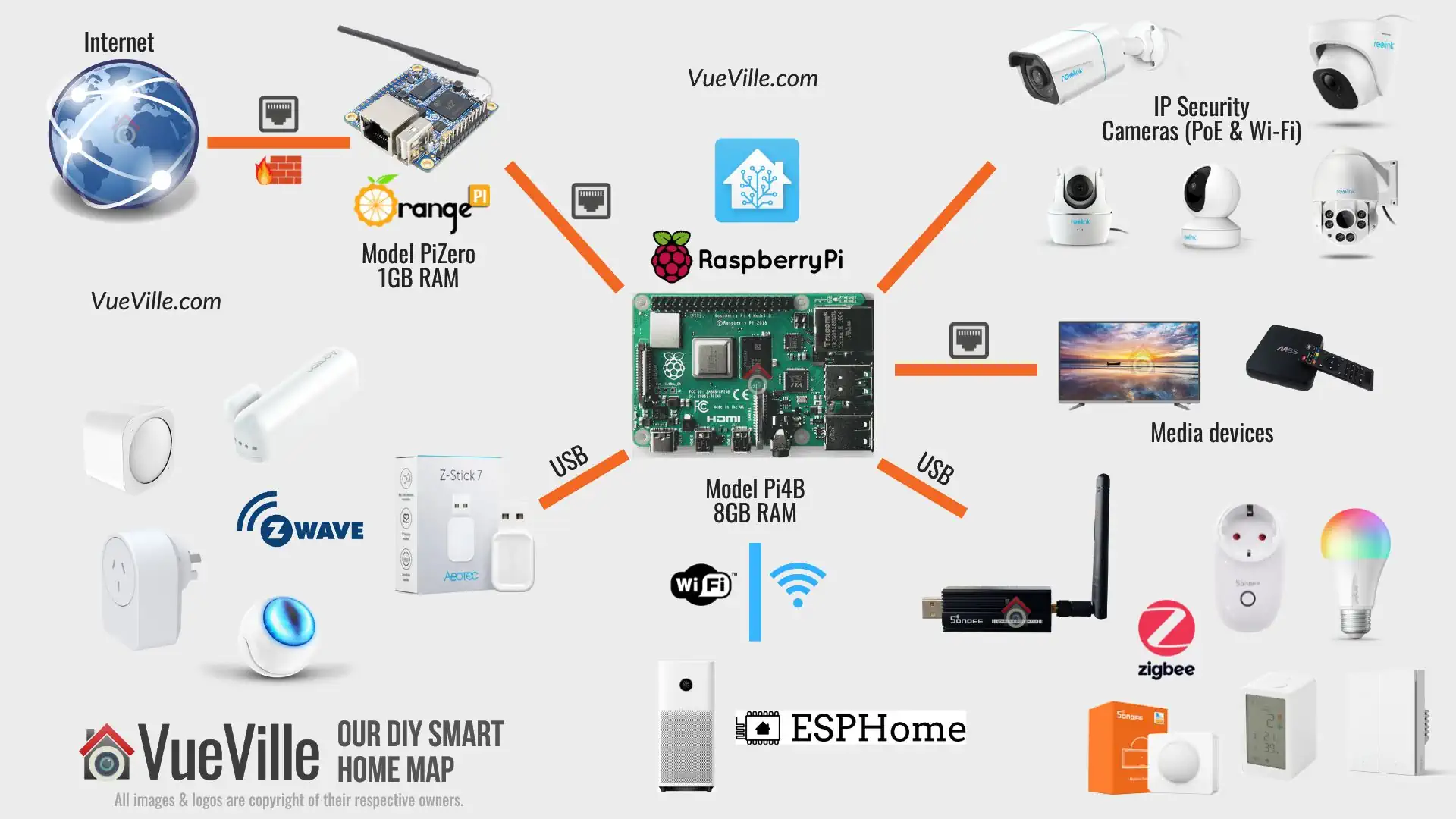
Matter doesn’t dictate how devices connect, but rather that they connect. It supports three primary network technologies: Thread, Wi-Fi, and Ethernet. Each has its strengths and weaknesses, making them suitable for different types of smart home devices. Understanding these differences is key to building a robust Matter network.
Wi-Fi is the most common and familiar option. It’s ideal for devices that require high bandwidth, like security cameras or streaming media players. However, Wi-Fi can be power-hungry and susceptible to interference, especially in crowded urban environments. Ethernet provides the most reliable and fastest connection, but requires a wired connection, limiting its practicality for many devices.
Thread is quickly becoming the preferred choice for low-power devices like lights, sensors, and door locks. It uses a mesh network topology, meaning devices can communicate with each other even if they’re not directly connected to the hub. This results in a more resilient and reliable network, especially in larger homes. Thread also consumes very little power, extending battery life for wireless sensors. The Linkind blog highlights the growing importance of Thread in Matter networks.
Matter devices can utilize different transport protocols depending on their capabilities and the network setup. A smart bulb might use Thread to connect to the hub, while a security camera relies on Wi-Fi. The Matter protocol handles the communication between these devices, regardless of the underlying transport.
First Devices: What Works in 2026
As of 2026, the Matter-certified device ecosystem is expanding rapidly, but it’s still evolving. Early adopters will find a growing selection of lights, switches, thermostats, and security systems that support the standard. Gizmodo’s reporting in late 2024 showed a significant increase in device compatibility, and that trend continues.
Eve Systems has been a particularly strong supporter of Matter, announcing that its entire lineup of Thread-enabled devices is compatible. This includes their smart plugs, door and window sensors, and water leak detectors. Other key players include Philips Hue, offering Matter-compatible bridges and bulbs, and Aqara, with a range of sensors and switches.
Here’s a categorized overview of some currently available Matter 1.3 devices:
Lights: Philips Hue (with compatible bridge), Eve Lighting, Nanoleaf Essentials. Switches: Eve Light Switch, Lutron Caséta (with compatible bridge). Thermostats: Ecobee Smart Thermostat Premium, Honeywell Home. Security Systems: Aqara Security System, Ring Alarm (limited compatibility). Sensors: Eve Door & Window, Aqara Door and Window Sensor.
- Philips Hue bulbs (requires the Hue Bridge)
- Switches: Eve Light Switch, Lutron Caséta (with compatible bridge)
- Thermostats: Ecobee Smart Thermostat Premium, Honeywell Home
- Security Systems: Aqara Security System, Ring Alarm (limited compatibility)
- Sensors: Eve Door & Window, Aqara Door and Window Sensor
Matter-Compatible Device Examples (2026)
| Device Category | Example Brand & Model | Thread Support |
|---|---|---|
| Lights | Eve Flare Bulb | Yes |
| Lights | Philips Hue (requiring Hue Bridge) | No |
| Thermostats | ecobee Smart Thermostat Premium | Yes |
| Locks | Yale Assure Lock 2 Plus | Yes |
| Sensors (Contact) | Eve Door & Window | Yes |
| Sensors (Motion) | Aqara Motion Sensor | No |
| Plugs | TP-Link Kasa Smart Plug Power Strip KP303 | No |
| Blinds | IKEA FYRTUR (requiring TRÅDFRI gateway) | Yes |
Illustrative comparison based on the article research brief. Verify current pricing, limits, and product details in the official docs before relying on it.
DIY Setup: Hubs and Controllers
Setting up a Matter network requires a Matter hub, also known as a border router. The hub acts as a central controller, bridging Matter devices to your home network and the cloud. It’s the foundation of your smart home ecosystem. Fortunately, several popular smart home hubs already support Matter, making the setup process relatively straightforward.
I've found the Apple HomePod Mini and the 2nd Gen Nest Hub are the most reliable border routers right now. Amazon's 4th Gen Echo works too, though the Alexa app feels more cluttered than Apple's Home app.
Here’s a step-by-step guide for setting up a Matter hub with Apple HomeKit:
1. Ensure your HomePod is running the latest software. 2. Open the Home app on your iPhone or iPad. 3. Tap the '+' button and select 'Add Accessory'. 4. Follow the on-screen instructions to scan the Matter QR code on the device packaging. 5. Assign the device to a room and configure its settings.
The process is similar for Amazon Alexa and Google Home, involving enabling Matter support in the respective apps and following the guided setup instructions. Troubleshooting common issues often involves ensuring your hub and devices are on the same network and checking for firmware updates. If a device isn’t discovered, try resetting it and repeating the commissioning process.
- Ensure your HomePod is running the latest software.
- Open the Home app on your iPhone or iPad.
- Tap the '+' button and select 'Add Accessory'.
- Follow the on-screen instructions to scan the Matter QR code on the device packaging.
- Assign the device to a room and configure its settings.
Adding Devices: The Commissioning Process
Once you have a Matter hub set up, adding new devices is generally a straightforward process called 'commissioning'. Matter supports multiple commissioning methods, including QR code scanning, NFC pairing, and manual entry. QR code scanning is the most common and user-friendly method.
To commission a device using a QR code, simply open your smart home app (Apple Home, Amazon Alexa, or Google Home) and select the option to add a new accessory. The app will prompt you to scan the QR code located on the device packaging or in the device’s settings menu. Once scanned, the app will automatically configure the device and add it to your network.
NFC pairing is available on some devices, allowing you to pair them simply by tapping them against your smartphone. Manual entry is a fallback option for devices without QR codes or NFC capabilities, requiring you to enter a setup code manually. During commissioning, you might encounter issues like the device not being discovered or the pairing failing. In such cases, try resetting the device, moving it closer to the hub, or checking for software updates.
What actually changed in 1.3
Matter 1.3 builds upon the foundation laid by earlier versions, introducing several key improvements and new features. According to matter-smarthome.de, a major focus of this update is enhancing device interoperability and security. This means a smoother experience across different ecosystems and a more robust defense against potential vulnerabilities.
One significant addition is improved support for multi-admin devices. This allows a single device to be controlled by multiple apps simultaneously, without conflicts. For example, you could control a Matter-enabled light bulb using both Apple Home and Amazon Alexa. This feature solves a common pain point for users who utilize multiple smart home platforms.
Matter 1.3 also introduces enhancements to device commissioning, making it more reliable and user-friendly. The update addresses some of the issues reported with earlier versions, such as devices failing to pair correctly. Additionally, Matter 1.3 expands the range of supported device types, paving the way for more innovative smart home products.
Security enhancements are another critical component of Matter 1.3. The update incorporates stronger encryption protocols and improved authentication mechanisms, protecting your smart home from unauthorized access.
Beyond the Basics: Advanced Configuration
Once your Matter devices are set up, you can unlock their full potential by creating scenes and automations. Scenes allow you to control multiple devices simultaneously with a single command. For example, a 'Movie Night' scene could dim the lights, lower the thermostat, and close the blinds.
Automations take things a step further, triggering actions based on specific events. You could create an automation to turn on the lights when motion is detected, or adjust the thermostat based on the time of day. Each smart home ecosystem (Apple HomeKit, Amazon Alexa, Google Home) offers its own tools for creating scenes and automations.
Matter’s emphasis on local control is a significant benefit. Unlike some cloud-dependent smart home systems, Matter allows devices to communicate directly with each other, even if your internet connection goes down. This ensures that your smart home continues to function reliably, even in the event of an outage. Exploring these advanced configurations can truly transform your smart home experience.
What's your biggest challenge with Matter?
Vote below and share which issue has been the biggest hurdle in your DIY Matter 1.3 smart home setup.


No comments yet. Be the first to share your thoughts!