
Pre-installation checklist
Verify your network infrastructure before pairing. Matter and Wi-Fi smart plugs require different foundational support. Skipping this step leads to unstable automations and devices that appear offline.
1. Verify Thread Border Router availability
Matter devices using the Thread protocol cannot connect to Wi-Fi directly. They require a Thread Border Router (TBR) to bridge the local mesh to your IP network. You must have one of the following active:
- Apple Ecosystem: HomePod mini, HomePod (2nd gen), or Apple TV 4K (3rd gen or later).
- Google Ecosystem: Nest Hub (2nd gen) or Nest Audio (with recent updates).
- Third-party: Dedicated hubs like the SkyConnect or Home Assistant with Thread integration.
If you lack a TBR, a Matter plug will not function. Wi-Fi plugs do not require this hardware but do require a stable 2.4 GHz signal.
2. Check Wi-Fi Signal Strength (for Wi-Fi Plugs)
Wi-Fi smart plugs operate exclusively on 2.4 GHz. They do not support 5 GHz bands. If your router combines bands under a single SSID, ensure the 2.4 GHz band is active and accessible. Weak signals cause frequent disconnections, which is the primary cause of smart plug failure.
3. Confirm Ecosystem Compatibility
- Matter: Works with Apple Home, Google Home, and Alexa, provided the TBR is present.
- Wi-Fi: Depends entirely on the manufacturer’s app and server infrastructure. Ensure your primary platform (e.g., HomeKit, Alexa) supports the specific brand you intend to buy. Proprietary apps like Kasa or Tuya often do not integrate natively with Apple Home without Matter support.
4. Assess Physical Placement
- Wi-Fi: Antennas are sensitive to metal boxes and thick walls. Ensure the outlet is within range of your main router.
- Matter/Thread: Devices form a mesh network. If your TBR is far from the plug (e.g., basement to attic), you may need intermediate Matter devices to act as repeaters. Thread signals struggle to penetrate thick concrete or metal appliances.
Configuration workflow
Setting up a Matter plug differs from Wi-Fi because it relies on the Thread mesh. Follow this sequence to ensure successful pairing.
1. Prepare the Thread Border Router
Ensure your TBR (HomePod, Apple TV, or Nest Hub) is online and updated. In the Home app, verify the device is recognized as a Thread border router. A stable Thread network is the foundation; if this step fails, the plug cannot connect to the internet or your hub.
2. Reset the Smart Plug
Most Matter plugs ship in pairing mode, but a hard reset clears previous configurations. Press and hold the physical button for 5–10 seconds until the LED flashes rapidly. This signals the device is broadcasting its setup code. Do not proceed until the flashing pattern is consistent.
3. Add the Device via Your Hub
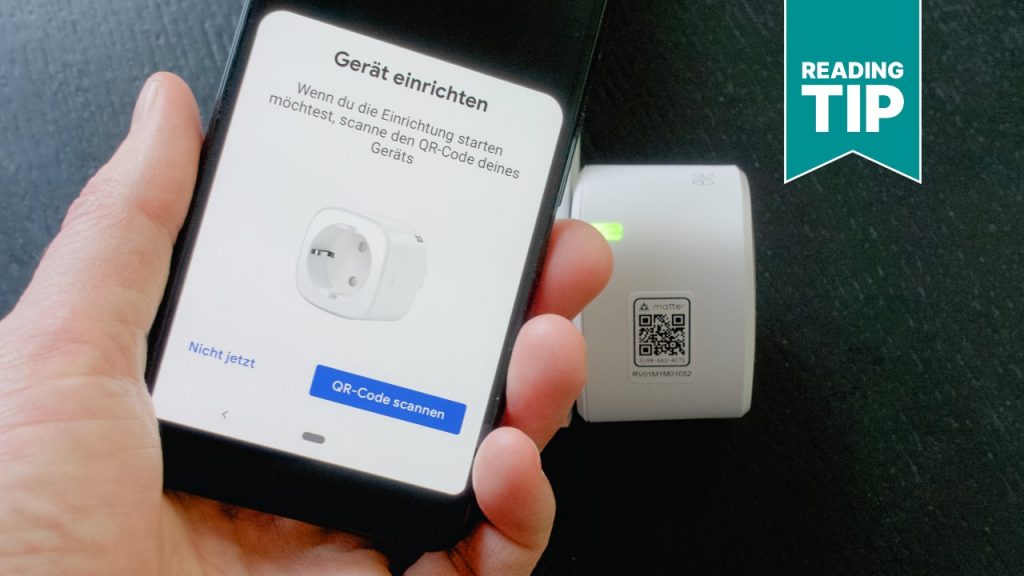
Open your smart home app and select "Add Accessory." The app scans for nearby Matter devices. If it does not appear, manually scan the QR code or setup code on the plug or packaging. The app communicates with the TBR to complete pairing. This process is faster than Wi-Fi pairing as it does not require the plug to join your main Wi-Fi network directly.
4. Assign Rooms and Names
Assign the plug to a specific room and use descriptive names (e.g., "Living Room Lamp" instead of "Plug 1"). This ensures voice commands and automations target the correct device. Consistent naming saves time when debugging automations later.
5. Test and Verify
Toggle the plug on and off via the app and voice commands. Matter over Thread should feel near-instant. If there is a delay, check the distance between the plug and the TBR. If the plug is far from the router, add a Matter-compatible smart plug as a repeater to extend network coverage.
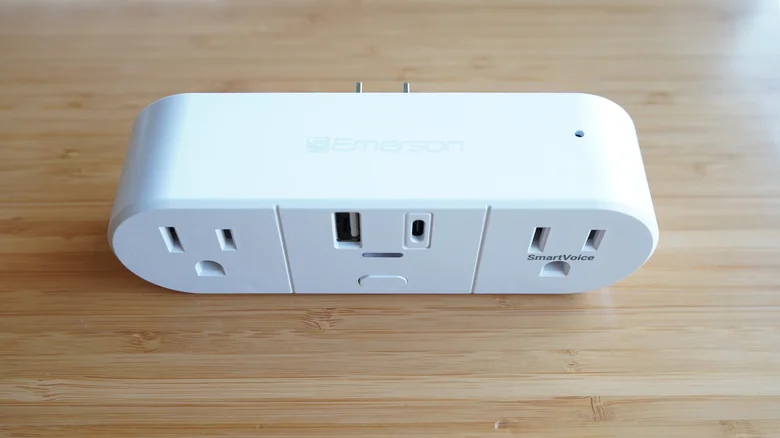
Ensure your HomePod, Apple TV, or Nest Hub is online and recognized as a Thread border router in its respective app. This device is the gateway for your Matter plug.
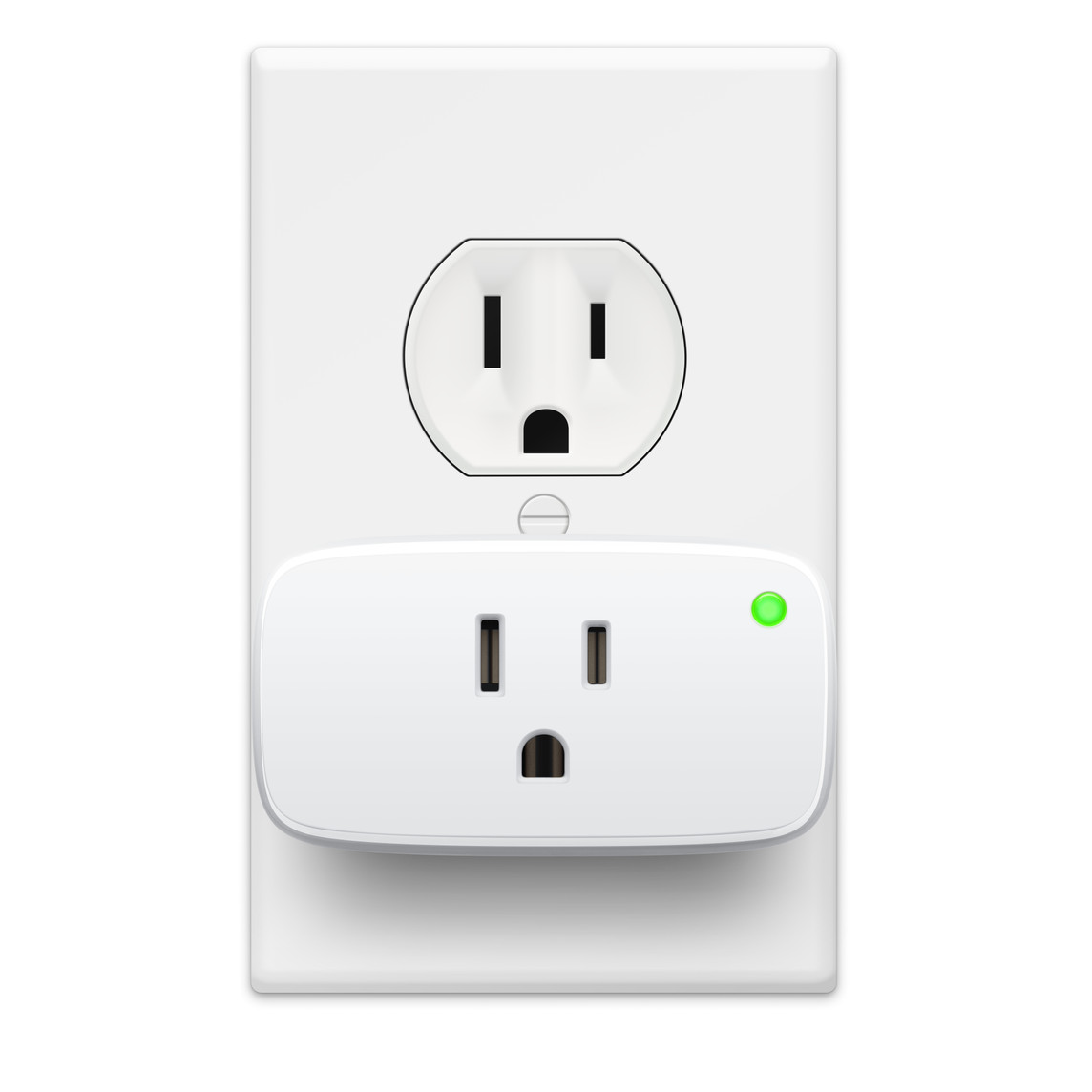
Hold the physical button on the plug for 5-10 seconds until the LED flashes rapidly. This signals the device is broadcasting its setup code and ready for discovery.
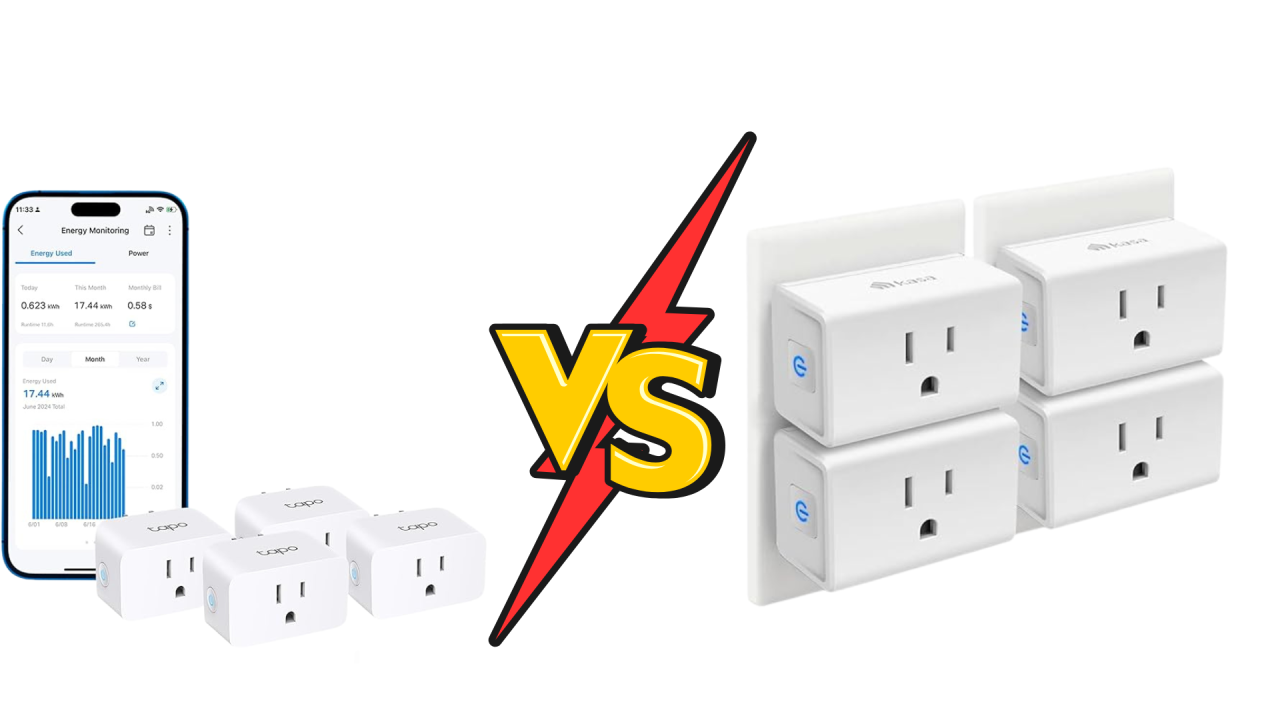
Open your smart home app and select "Add Accessory." Scan the QR code or setup code if the device does not appear automatically. The app will handle the Thread network registration.
Give the plug a descriptive name like "Living Room Lamp" rather than "Plug 1." This ensures voice commands and automations work correctly.
Toggle the plug on and off via the app and voice. Check for response time. If delayed, ensure the plug is within range of the Thread border router or a Matter repeater.
| Criterion | Matter (Thread) | Wi-Fi Plug |
|---|---|---|
| Setup Complexity | Requires Thread border router | Direct Wi-Fi connection |
| Network Load | Low power, offloads Wi-Fi | Consumes Wi-Fi bandwidth |
| Response Time | Near-instant via Thread mesh | Can vary with network congestion |
| Interoperability | Works with Apple, Google, Alexa | Often limited to one ecosystem |
Common setup failures
Missing Thread Border Router
The most common error is assuming Matter plugs work like Wi-Fi plugs. Matter relies on a border router to translate Thread radio signals into your home’s IP network. Without a TBR, the plug exists on a local Thread mesh that your phone or hub cannot reach. Verify your router’s Thread support (e.g., Apple TV, HomePod, Nest Hub) before purchasing.
Poor Mesh Placement
Thread operates on low-power radio waves that struggle to penetrate thick concrete or metal. A plug behind a refrigerator or in a distant corner may pair successfully but drop offline as the mesh signal weakens. Unlike Wi-Fi, Matter devices depend on a chain of nearby devices to relay signals. If that chain is broken, the plug becomes unusable.
Ignoring Network Congestion
Wi-Fi plugs consume bandwidth and can clutter your network if you have dozens of devices. Matter over Thread offloads this traffic, but only if the Thread mesh is healthy. Ensure your TBR is not overloaded with other Thread devices.
No comments yet. Be the first to share your thoughts!